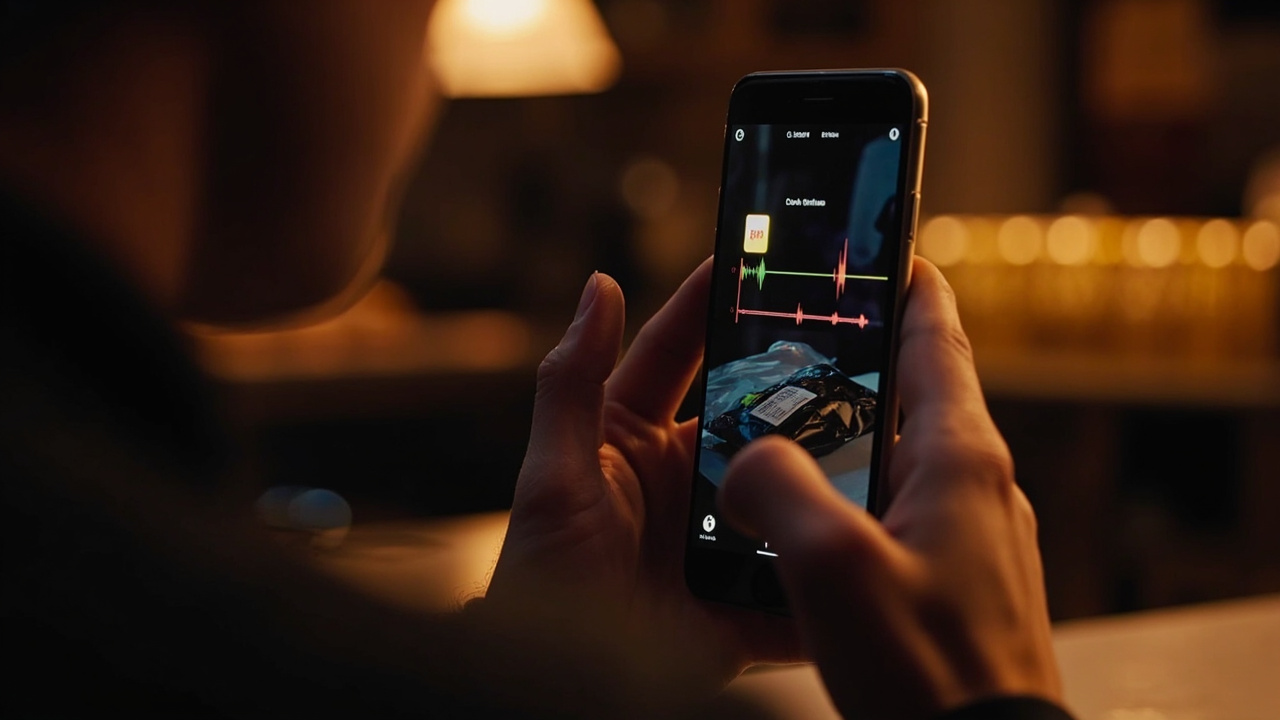
TL;DR: Google launched Guided Vision in Gemini Live for compatible Android phones on October 1, 2026, delivering spoken, real-time camera descriptions with reframing prompts for blind and low-vision users.
Launch answers what Guided Vision does
Google introduced Guided Vision inside Gemini Live across compatible Android devices on October 1, 2026, according to the official Google blog titled Guided Vision launches in Gemini Live for Android.
The feature turns a live camera share into a voice-first descriptive aid, according to that Google blog announcement.
People who are blind, have low vision, or seek intuitive visual help are the intended audience described by Google.
The system narrates surroundings through sound, accepts detailed spoken follow-ups, and offers proactive voice direction for centering subjects of interest.
Activation begins with camera sharing during a Gemini Live session, as explained by Google.
The Verge, in its report titled Google’s new Guided Vision feature can help you read the fine print, described the same launch as live on compatible Android hardware for real-time audio narration of anything in view of the phone lens.
That Verge coverage appeared on October 1, 2026, with reporting by Stevie Bonifield.
Both accounts place the capability inside Gemini Live rather than as a separate application.
The Google blog credited Senior Product Manager for Gemini Live Isha Sheth and Senior Product Manager for Google Accessibility Engineering Scott Adams as its authors.
Community collaboration shaped development
Google said Guided Vision was built alongside the blind and low-vision community, according to its launch blog.
The company said it previewed the tool earlier in September among other efforts to widen digital and physical accessibility across Android.
Preparation included a partnership with Aira to visually interpret data totaling tens of thousands of hours.
More than 1,000 members of Aira’s Trusted Tester network stress-tested and refined the model across daily routines.
Aira specialists served directly with Google teams as subject-matter experts to help establish and evaluate safety guardrails.
Google also cited extensive testing and feedback from blind and low-vision communities across India, Brazil, Singapore, Indonesia, Japan, and additional locations.
That international input informed descriptions, reframing cues, and answers intended to feel natural and helpful.
The Verge likewise framed the audience as people who are blind, have low vision, or want assistance in particular situations.
Camera framing help is central
When the phone lens points too high, too close, or slightly off to the side, Gemini supplies natural verbal prompts for reframing.
Examples given by Google include asking a person to pan slowly to the right, tilt downward, or step back to obtain clearer visual context.
The goal is to secure sufficient visual information to answer spoken questions.
The Verge summarized that behavior as audio cues to help line up the camera when a requested item is outside the frame.
Google described those signals as dynamic audio descriptions paired with natural verbal reframing cues for exploring an environment.
Users do not need to capture still images separately before asking, because narration occurs during the shared-camera Live session.
Questions can continue throughout the session as the camera moves.
Fine print reading leads everyday uses
Reading small and complex text is one of the highlighted everyday applications.
Google listed small nutrition labels on food packages as a supported example.
Deciphering appliance dials and washing machine cycles was another text task named by Google.
Reading printed menus in dimly lit restaurants was also included in that category.
The Verge emphasized the same strength, noting assistance with reading small text and describing details on specific objects.
The Verge added that a person could request follow-up information, such as asking Gemini to read an expiration date from an item it had helped locate.
According to Google, users can hear clear descriptions of surroundings and then pose detailed follow-up questions.
The conversational format allows clarification without restarting the camera share.
Locating objects and describing details
Searching an immediate area for everyday items is another function outlined by Google.
Finding a dropped earbud on the floor was offered as an illustration.
Locating black pepper inside a crowded spice cabinet was another illustration from Google.
The Verge characterized this group of functions as finding or identifying nearby objects.
Describing colors, patterns, and shapes forms a related category.
Google gave checking whether a striped shirt pairs with trousers as an example question.
Identifying the color of a specific jacket was another example provided by Google.
The Verge noted that people can have Gemini describe what is nearby and then ask follow-up questions about it.
Exploring an immediate environment rounds out the listed scenarios.
Google said users can obtain descriptive overviews of unfamiliar spaces, room layouts, or objects placed across a table.
Language support and broader assistance
Google said Guided Vision supports conversations across multiple languages.
Feedback from communities in India, Brazil, Singapore, Indonesia, Japan, and elsewhere guided that multilingual conversational design.
Like many accessibility innovations, the tool also offers practical visual help beyond its primary audience, according to Google.
Older adults were named among those who may benefit.
Individuals with low literacy were also named by Google.
Anyone trying to read fine print in low lighting was included in that broader group.
The emphasis remains on quick visual verification where immediate spoken confirmation matters most.
Meal preparation, locating objects, and picking an outfit were cited by Google as representative moments.
Three ways to open Guided Vision on Android
Access through the Gemini mobile application is the first method detailed by Google.
Users open profile settings in the Gemini mobile app and switch on Use Guided Vision in Live.
From there, they open Gemini Live and tap to share the camera.
Accessibility shortcuts provide a second pathway under Android Settings.
The path is Android Settings > Accessibility > Vision assistance > Guided Vision, according to Google.
There, a shortcut can launch Guided Vision through the floating accessibility button, a two-finger swipe gesture, or pressing both volume keys.
TalkBack integration provides the third pathway for people running Google TalkBack.
Those users can bring up the TalkBack menu with a three-finger tap and select Guided Vision directly.
The Verge similarly reported availability in Google TalkBack and through an accessibility shortcut configured in the Settings application.
Device and software requirements
Guided Vision is available on Android devices running Android 9 and above in regions and languages where Gemini Live is supported, according to Google.
The Verge likewise reported an Android 9 and above threshold for compatible devices.
Google advised ensuring the Gemini app and Android system software are updated to the latest versions before starting.
The Verge noted that the feature had been announced in a recent set of Pixel updates before this availability step.
The Verge described Guided Vision as operating after camera sharing is enabled inside Gemini Live.
No separate hardware accessory is described in either account.
Comparison to Apple accessibility option
The Verge compared Guided Vision to the VoiceOver Live Recognition feature Apple has added to iPhone and Vision Pro.
Both approaches use camera input and spoken output to assist with visual interpretation.
The Verge presented Apple’s option as a point of reference for readers familiar with accessibility tools on other platforms.
Google’s own announcement did not present performance comparisons or claim superiority over other systems.
The distinction emphasized in the reporting is placement inside Gemini’s conversational Live session with continuous reframing dialogue.
Safety limits and assistive status
Google described Guided Vision as an assistive utility that can make mistakes, as is common with generative artificial intelligence technology.
The company stated it is not a medical device.
It is not a mobility aid or white cane replacement.
It is not intended for navigation, safe-travel guidance, or obstacle detection.
The Verge repeated that caution, advising readers not to rely on the tool for navigation, safe-travel guidance, or obstacle detection, or as a replacement for a cane or mobility aid.
Google said users should continue relying on established mobility aids and safe-travel practices in physical environments.
Those boundaries apply even though the system provides environmental descriptions.
The guidance means package labels, room summaries, and object locations should be treated as convenience assistance rather than safety direction.
What to do next if you want to try it
Confirm the phone runs Android 9 or a later version and resides in a region and language where Gemini Live is supported.
Update the Gemini app and Android system software to the newest releases.
Open the Gemini mobile app profile settings and enable Use Guided Vision in Live.
Launch Gemini Live, share the camera, point toward text, an object, or part of a room, and ask a question aloud.
If Gemini asks for reframing, pan, tilt, center the subject, or step back, then continue the conversation with follow-up questions.
Sources referenced
- Google’s new Guided Vision feature can help you read the fine print | The Verge (https://www.theverge.com/ai-artificial-intelligence/1003756/google-gemini-live-guided-vision)